Index
1.0 - System requirements
This website has been designed to work on a wide range of systems but please be aware that it contains a large number of high resolution images and HD videos so loading times may vary depending on the specification of your computer and the speed of your internet connection. Checking the following things can also improve your viewing experience:
1.1 - Screen resolution
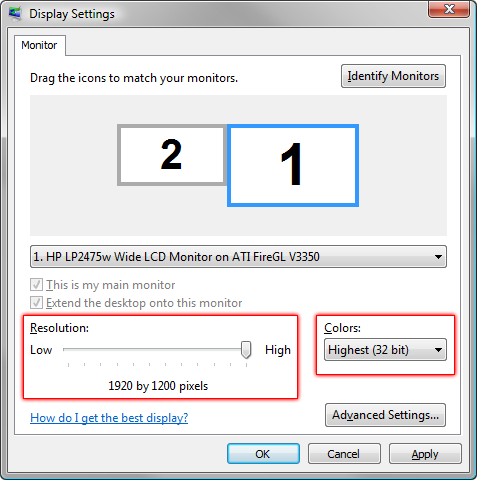
The website has been designed to be viewed on a minimum screen resolution of 1024 x 768 pixels but for the best viewing experience you should set your resolution and colours to their highest possible settings. You or your system administrator can do this by going to Control Panel >> Display Settings on your PC.
1.2 - Browser usage
While this website may work on all web browsers, we recommend using one of the following for the best experience:
- • Microsoft Internet Explorer (IE) 7.0 and later - http://windows.microsoft.com/en-US/internet-explorer/downloads/ie.
- • Firefox 3.6 and later - http://www.mozilla.org/en-US/firefox/fx.
- • Safari 3.1 and later - http://www.apple.com/safari.
- • Google Chrome - https://www.google.com/chrome.
If you're having problems, check that you're using the most up-to-date version of your web browser.
This website is not compatible with Microsoft Internet Explorer (IE) 6.0 due to the technical limitations and safety concerns of this web browser. For more information about why this web browser isn't supported please take a look at this information released by Microsoft - http://www.ie6countdown.com.
1.3 - JavaScript is enabled
To use some elements of this website you will need to have JavaScript enabled in your web browser. You or your system administrator can do this by doing the following:
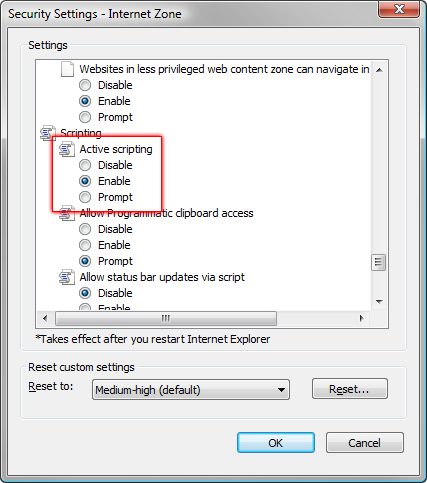
1.3.1 - Internet Explorer
Internet Options/Security/Custom Level... and Enable Active Scripting.
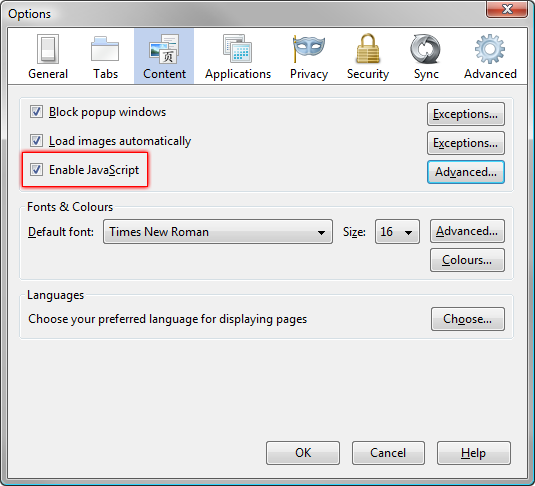
1.3.2 - Firefox
Options/Content... and Enable JavaScript.
2.0 - Site Navigation
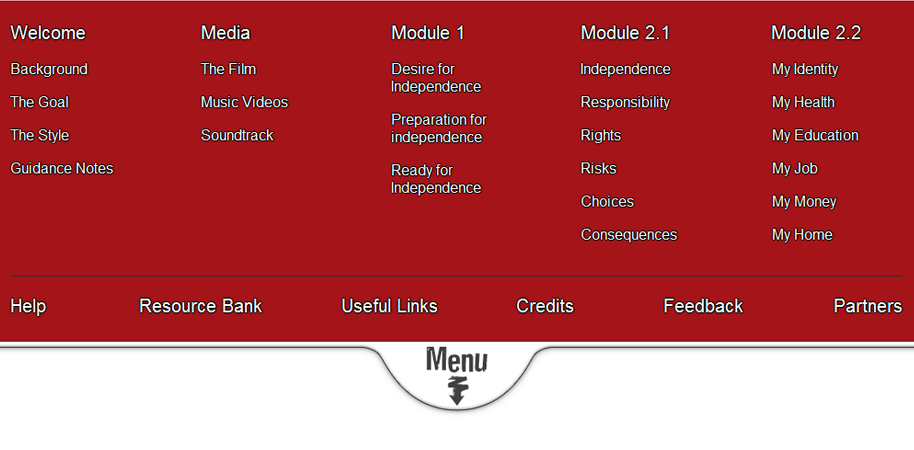
There are a number of tools available to navigate this website. Every page contains a Contents Menu that slides down from the top of the screen. Access this by clicking the Menu Tab. Click the tab a second time to hide the Menu.

The Contents Menu is a site map and contains a link to every page in the website giving you access to any page you like from any location; it is the fastest way to navigate this site.
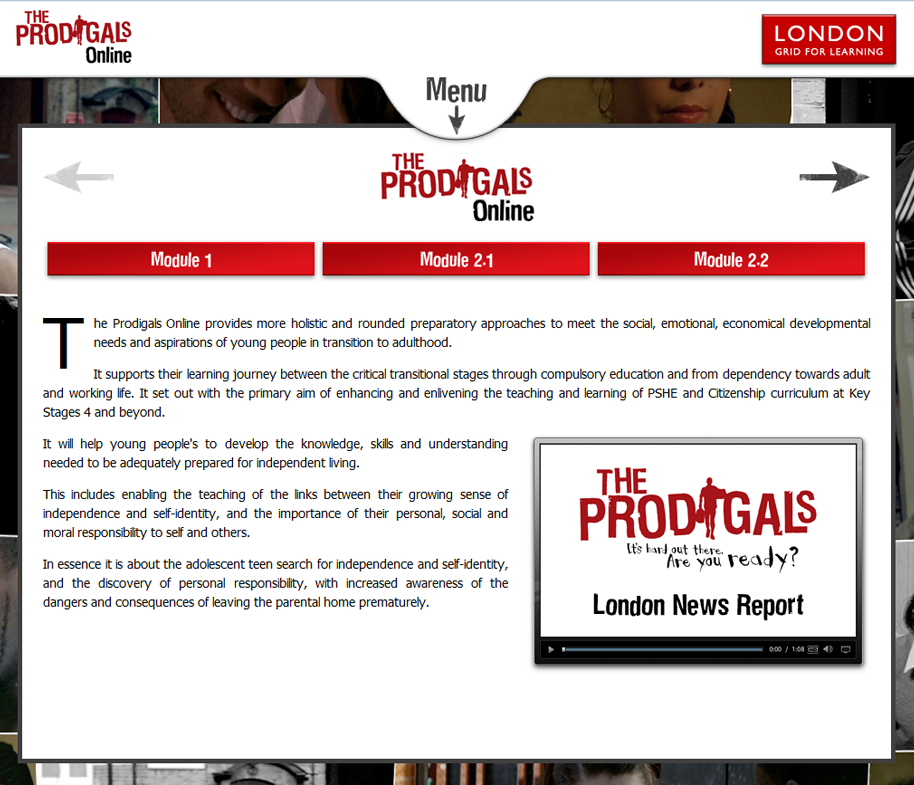
The front page also contains a set of quick links to get you to the main sections of the website.
3.0 - Main Content
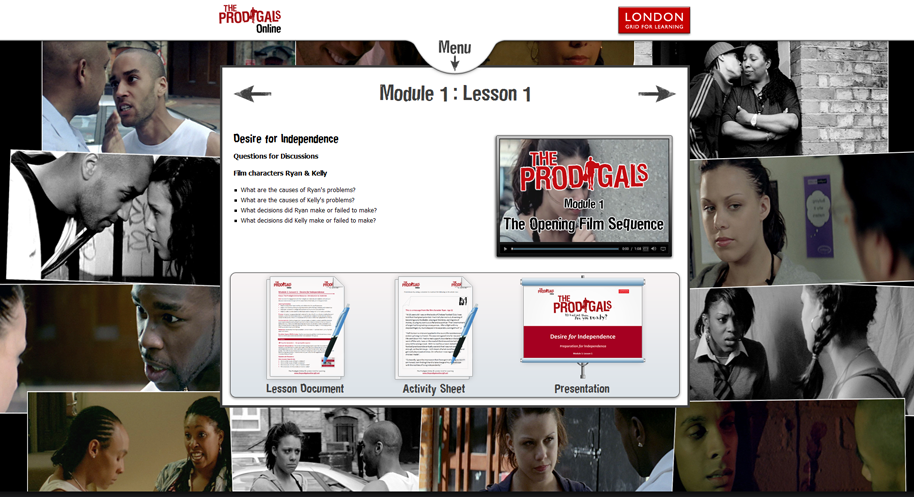
The main content sections of the website are made up of a description, lesson plan, teacher guidance video and various lesson activities relevant to the subject.
3.1 - Video
 This website uses the latest streaming technology to provide you with a video that is optimised to the specification of your computer and broadband speed. For those with faster computers and higher broadband speeds HD video will be streamed. If the player determines that your computer won't be able to stream in HD quality it will automatically downgrade the video to a more suitable format (note: in some cases you may see a very brief flicker in the picture as the video downgrades). Videos are streamed using the Adobe Flash player and for best results you should make sure you are running the latest version of Flash player on your computer before watching videos on this website. Please note, if you are using the Click To Flash plug-in for Safari then this will need to be disabled in order to watch the videos on this site. Videos can also be played on IOS devices (iPad and iPhone), these do not require Adobe Flash to be able to play. If you are having trouble viewing videos on this website then please check first that both Flash and your web browser are up-to-date and if you are still having trouble please contact the webmaster.
The video player has a number of different elements to it:
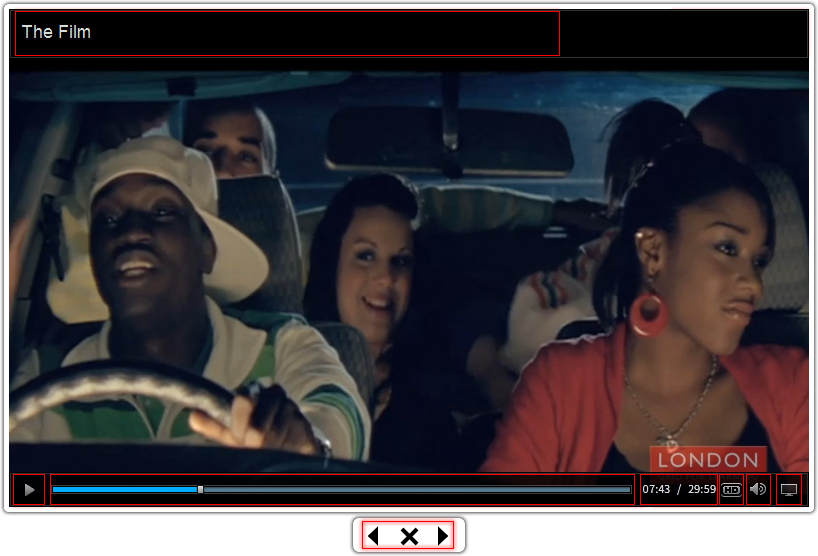
The title of the video is displayed in the top left hand corner. The video will start to play automatically but if you wish to pause the video then press the play button in the bottom left hand corner, a pause icon (2 vertical bars) is then displayed instead of the play icon. To resume the video press the play/pause button once more.
The blue bar at the bottom of the player shows you a visual representation of how much of the video has been played already. You can skip to another part of the video by clicking on any point on this bar. Hover your mouse pointer over the bar for a second so you can see what time that particular point of the video is.
To the right of the blue bar is the video time in minutes and seconds. The first number is the elapsed time and the second is the total time of the video. If you see an HD icon next to the video time it means that the video is currently streaming in HD (high definition) mode.
To adjust the volume, click on the sound button, which is the icon second from the right in the bottom bar.
The button in the bottom right hand corner is the full screen button. Click on this to have the video fill the whole of your screen. Click the button again to return to the original size.
3.2 - Audio
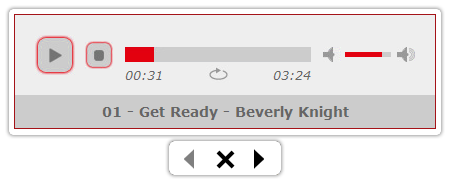
This site includes a Soundtrack that will be displayed as either a text link on the Soundtrack page or as an Icon as the icon below on the lesson pages.

The below player will open when playing music files. If there is more than one music file on the current page you can use the right and left arrows to go forward or back through the track listing.
4.0 - The Resource Bank
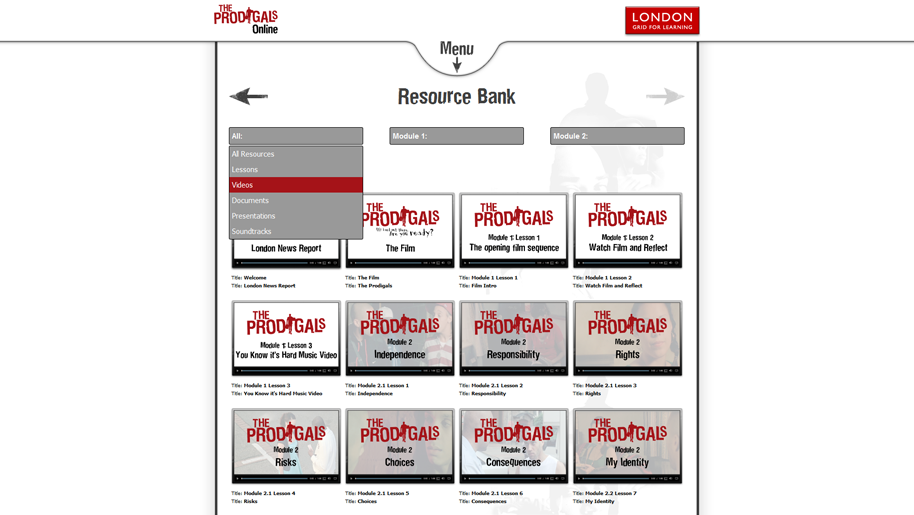
To view the resource bank, click on the Resource Bank icon on the Home page or in the contents menu.
The Resource Bank is a collection of all the media (video, images) and activities available throughout this website gathered in one place for easy access. It also contains details such as image size, video length and file size of the activities. Due to the quantity of media contained in the Resource Bank it may take a while to load depending on the speed of your internet connection. If you have caching turned on in your browser the speed that this page loads will be considerably reduced after your first visit. You can browse through the collection using the scroll bar on your browser but to make it easier to find what you are looking for there is a filter option at the top of the page. For example if you are looking for a video within a particular module click on the Module number then select the lesson. Alternatively if you are looking for all videos you can select All then Videos. To get back to the top of the Resource bank quickly use either of the two up arrows to the left and right of the Resource Bank indicated below.
5.0 - Feedback
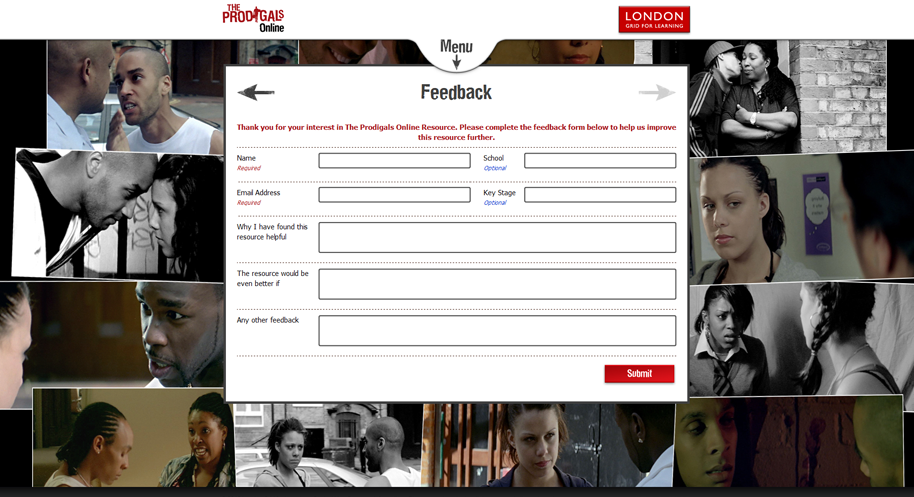
Ultimately, it is for teachers and students to decide how to make the best use of these unique resources. However we would love to hear from users of this site as to how this resource has helped their learning activities.
Please take the time to complete the online feedback form as we are keen to provide relevant resources that meet the needs of modern teaching and learning settings.